By Humaira
Last updated: September 13, 2026
Reviewed by: Tech Team
Tested on: Samsung Galaxy A52, Android 14, Xiaomi Redmi Note 11, MIUI 14
This guide explains safe ways to improve performance on an older Android phone before doing a factory reset. Menu names may vary by brand and Android version, so treat exact button names as approximate.
Our approach
We focus on changes that are:
- Safe for most users
- Reversible
- Unlikely to delete personal data
- Useful before resorting to a factory reset
If a step carries risk, we mention it. We do not recommend “RAM booster,” “one-tap cleaner,” or “CPU cooler” apps because they often add ads and background load.
Before you start
Back up anything important first:
- Photos and videos
- Contacts
- WhatsApp/Signal chats
- Authenticator codes
- Notes and files
A normal cleanup should not delete your data, but backups are smart before changing system settings.

1. Restart the phone
A restart closes stuck processes and clears temporary memory.
Steps:
- Hold the Power button.
- Tap Restart.
- If frozen, hold Power + Volume Up for 10–15 seconds.
Do this before assuming the phone is “dying.”
2. Check storage pressure
Phones often slow down when storage is nearly full.
Go to: Settings → Storage
or
Settings → Battery and device care → Storage on Samsung.
If storage is above 85–90%, clean up:
- Large videos
- Downloads
- Duplicate photos
- Offline maps
- WhatsApp media
- Old screen recordings
Move files to Google Photos, a computer, or an external drive if needed.
3. Remove apps you do not use
Unused apps can still consume storage and run services.
Go to: Settings → Apps → See all apps

Uninstall apps you have not used in months. If uninstall is unavailable, use Disable carefully. Avoid disabling unfamiliar system apps.
4. Limit background battery usage
Many apps do not need to run constantly.
Go to: Settings → Apps → choose app → Battery

Use:
- Restricted for rarely used apps
- Optimized for normal apps
- Unrestricted only for essentials like calls, SMS, alarms, or important notifications
Also check: Settings → Battery → Background usage limits
Put shopping, gaming, and social apps into sleeping/deep sleeping where available.
5. Update the system and apps
Updates can fix bugs and security problems.
System update: Settings → Software update → Download and install
Apps: Play Store → profile icon → Manage apps & device → Update all

If your phone is older and an update is very large, check recent user feedback for your exact model before updating.
6. Reduce animations
This can make an old phone feel faster.
Enable Developer Options:
- Settings → About phone
- Tap Build number seven times
- Enter your PIN
Then open: Settings → System → Developer options
Set to 0.5x or Off:
- Window animation scale
- Transition animation scale
- Animator duration scale
This changes only visual effects.
7. Replace heavy apps with lighter options
If Facebook, Instagram, TikTok, or shopping apps feel slow:
- Use Lite versions where available
- Use the mobile website for apps you rarely open
- Avoid keeping multiple similar apps installed
For banking or security apps, use official apps only.
8. Clear cache carefully
Cache clearing is usually safe.
Chrome: Chrome → three dots → History → Clear browsing data → Cached images and files
Apps: Settings → Apps → app → Storage → Clear cache
Do not tap Clear data unless you accept that the app may reset and log you out.
9. Simplify the home screen
Use:
- Static wallpaper
- Fewer widgets
- Default launcher or a lightweight launcher
- Minimal icon packs and themes
Live wallpapers and heavy widgets can hurt older devices.
10. Check for malware or bad apps
Warning signs:
- Pop-ups outside the browser
- Sudden battery drain
- Overheating
- Unknown apps installed
- New ads on the lock screen
Run: Play Store → profile → Play Protect → Scan
Remove recently installed apps you do not recognize. Check permissions for SMS, Accessibility, and Device admin access.
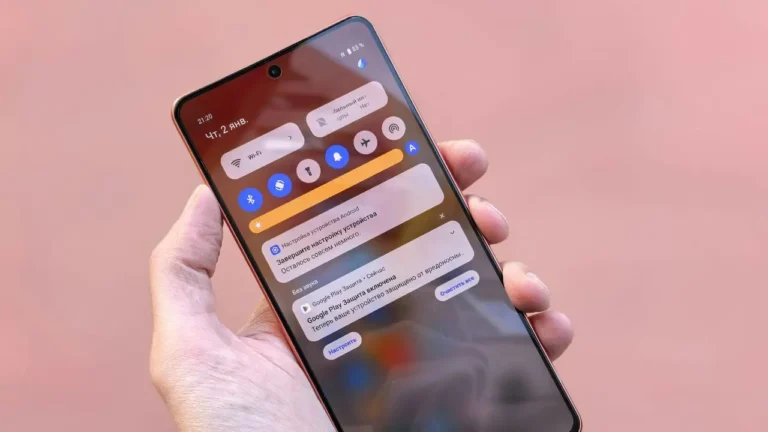
11. Use Battery Saver
Battery Saver can reduce background activity.
Go to: Settings → Battery → Power saving mode
Use it when lag is bad or battery is low. Turn it off for gaming or camera use if performance feels limited.
12. Consider battery health
If the battery is old, the phone may throttle performance.
Signs:
- Random shutdowns
- Battery jumps from 30% to 10%
- Overheating
- Very fast drain
If the battery is swollen, stop charging and use a proper service center.
When factory reset makes sense
Factory reset may help if:
- The phone is still slow after everything above
- Apps crash constantly
- Storage is full and messy
- You suspect serious software corruption
Back up first, then go to: Settings → General management/System → Reset → Factory data reset
Quick checklist
Do these first:
- Restart
- Free storage
- Uninstall unused apps
- Update system/apps
- Restrict background battery for heavy apps
- Reduce animations to 0.5x
- Remove cleaner/booster apps
- Scan with Play Protect
FAQ
Will clearing cache delete photos?
No. Cache is temporary data. Photos, contacts, and app accounts are not removed by clearing cache.
Are cleaner apps safe?
Many are unnecessary. They often add ads and background services. Android manages memory automatically.
Can I permanently boost RAM?
Not really. RAM is hardware. You can reduce usage by uninstalling heavy apps and limiting background activity.
Should I factory reset an old phone every year?
Usually no. Try maintenance first. Reset only when problems persist.
Sources and references
- Android Help: storage, updates, battery, backup
- Samsung/Xiaomi/Oppo/Vivo support pages for exact menu paths
- Google Play Protect help